Microsoft Excel: Spreadsheets
- 4.8
- Rating
- 1.00B
- Installs
- Free
- Price
 Analysis by App-foxy
I have used Microsoft Excel as a mobile productivity tool rather than treating it as a miniature version of a desktop office suite. That distinction matters. On a phone or tablet, it is most useful when I need to check figures, update a working sheet, organize information, or turn a small set of numbers into something understandable without waiting to reach a computer. It is less comfortable when the task involves a wide workbook, many formulas, or extended data entry.
Developed by Microsoft Corporation, this free spreadsheet app is aimed at everyone and belongs firmly in the productivity category. Its enormous reach is easy to understand: it has passed one billion installs, holds a 4.8 average from around 8.4 million ratings, and has been available since January 6, 2015. Those figures do not make it perfect, but they do show that it has become a familiar choice for people who need spreadsheets on the go.
How Excel works when the computer is not nearby
The familiar grid is still the center of the experience. I can open a workbook, select a cell, enter text or numbers, adjust a formula, and move through rows and columns in a way that feels recognizable if I have used Excel elsewhere. That familiarity is one of its strongest advantages. I do not have to learn a completely different spreadsheet language just because I am working from a mobile device.
In-Depth Coverage of Microsoft Excel: Spreadsheets
The app makes sense for practical jobs such as tracking household spending, recording stock for a small business, preparing a simple timetable, checking a project list, or reviewing figures sent by a colleague. It is also useful for a quick correction: if a total is wrong because one value was entered incorrectly, I can fix the cell without opening a laptop.
On a touchscreen, selecting the right cell can still be fiddly, especially in a dense sheet. I find the experience much better when the workbook is already structured and I am making focused edits. Starting a large model from a blank grid is possible, but it demands more patience than the same task on a full keyboard and monitor.
The mobile format encourages a different working style. Instead of trying to complete every part of a complicated workbook, I use the app for inspection, small changes, and decisions that depend on current information. That approach reduces the frustration caused by cramped controls and makes the app feel like a useful companion rather than a replacement for every desktop workflow.
Charts and AI-assisted interpretation
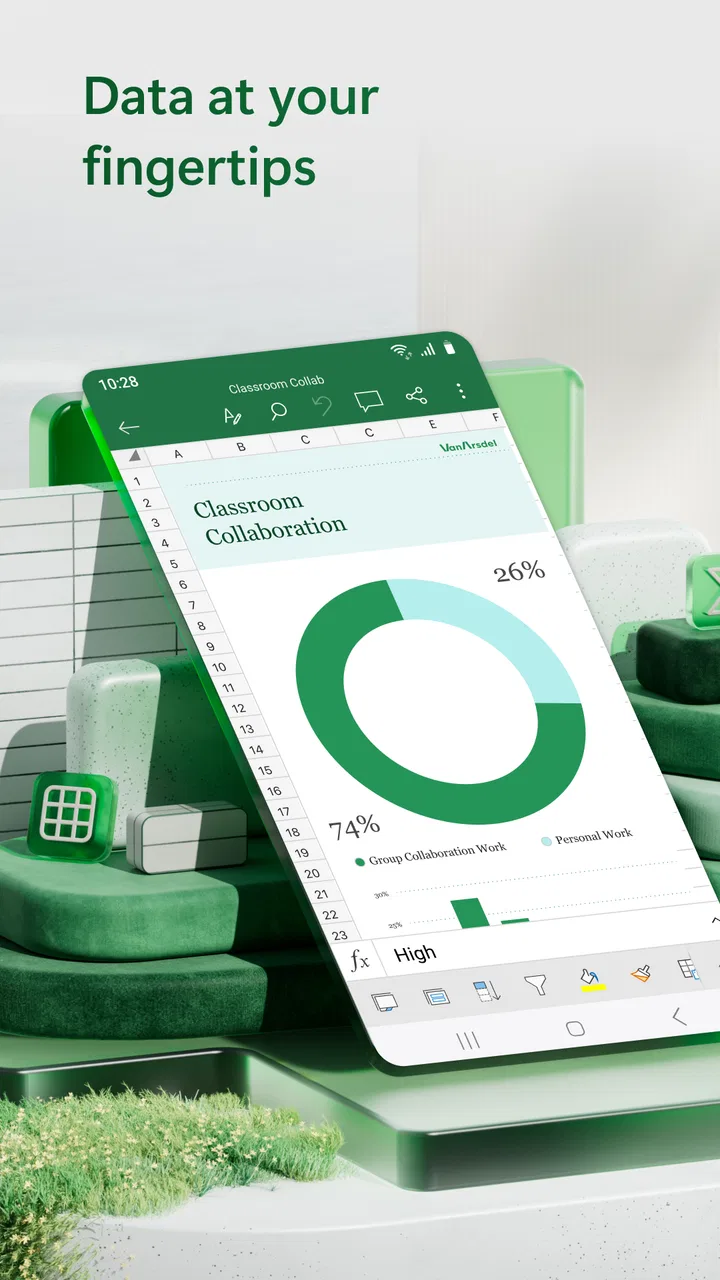
One of the more interesting parts of the current experience is the focus on AI tools that can generate visual charts from data. This is valuable when the figures are easier to understand as a trend, comparison, or distribution than as a long list of cells. I can imagine using it to turn a sales table into a quick visual for a meeting or to spot a change in monthly spending more easily.
There is an important qualification, though: a chart is only as useful as the selected data and the question behind it. I would not accept an automatically suggested visual without checking the range, labels, units, and time period. A polished chart can still tell the wrong story if the source selection is incomplete. The best workflow is to use the AI assistance for a starting point, then review the result manually before sharing it.
This feature is most helpful for people who understand what they want to compare but do not want to spend time experimenting with chart types. It is less valuable for users who need strict visual standards, carefully controlled reporting, or a highly specialized model. In those cases, deliberate manual setup may be slower but safer.
A realistic everyday workflow
Imagine I am helping organize a small community event. I keep a sheet with expected expenses, confirmed payments, quantities, and remaining needs. During the day, someone tells me that a supplier has changed a figure. I can open the workbook on my phone, update the relevant cell, and check whether the totals still make sense. Later, I can use the data to create a simple chart showing where the budget is going.
That scenario shows where the app earns its place. I am not trying to build an elaborate financial system on a touchscreen. I am maintaining a useful record, checking the effect of a change, and communicating the result. The app turns a moment that would otherwise require notes, mental arithmetic, and a later computer session into a short, organized task.
For reliable results, I recommend keeping the sheet narrow enough to navigate comfortably, using clear column headings, and separating raw entries from calculated totals. I also avoid editing several unrelated areas at once on a phone. A small amount of structure at the beginning makes mobile maintenance considerably easier.
What the free access actually means
The app is free to download and use as a basic productivity option, which makes it easy to try without committing money first. That is a meaningful advantage for students, families, occasional users, and anyone who only needs a spreadsheet from time to time. I can test whether the mobile workflow suits me before deciding whether I need anything beyond the free experience.
There are in-app purchases listed from $1.00 to $129.99 per item. I would treat that range as a reason to check the exact offering shown on my device before paying, rather than assuming that every feature or plan has the same cost. The free entry point and the paid options should be considered separately: free access can already be useful for straightforward spreadsheet work, while paid value depends on the particular tools and account arrangement I need.
I would not describe the app as automatically inexpensive in every situation simply because it can be installed for free. Someone who only opens a sheet occasionally may get all the value they need without spending anything. A professional user with more demanding requirements should examine the purchase screen carefully and compare the cost with the value of the features they will actually use.
You May Also Like

 AccuWeather: Weather Radar
AccuWeather Review: A Quick, Clear Forecast for Everyday Decisions
For everyday plans, the best forecast is the one you can understand quickly. AccuWeather makes rain timing, radar, and local conditions easy to act on, with a few trade-offs.

 Hill Climb Racing
Why Hill Climb Racing Still Turns Crashes Into One More Run
A tiny car, a bumpy hill and one more upgrade: Hill Climb Racing keeps resurfacing because its simple chaos makes every near-miss feel personal.

 AliExpress - Shopping App
AliExpress Makes Global Shopping Feel Personal, but Shoppers Bear the Risk
AliExpress turns a global marketplace into a pocket-sized discovery engine. Its reach is useful, its shopping loop compelling, and its trade-offs easy to miss.

 Lords Mobile: Kingdom Wars
Lords Mobile Is a Kingdom-Building Routine, Not a Quick Match
A case-by-case verdict on the building, battles, device demands, and social commitments that make Lords Mobile rewarding for some players and exhausting for others.

 PDF Scanner app - TapScanner
TapScanner Makes Paperwork Easier to Capture, Check, and Share
TapScanner makes scanning with a phone feel less like a rescue operation and more like a dependable step in getting work done. Its capture tools are useful, though not flawless.

 Block Blast!
Block Blast! Shows How Much a Puzzle Game Can Leave Out
A quiet grid game shows why puzzle players increasingly value instant clarity, repeatable skill and low-pressure play—and where the genre still needs to catch up.
More From Our News Desk
View All News


This distinction is especially important for households and small teams. If one person only needs to read a workbook and make occasional corrections, paying may not be necessary. If the app becomes part of a regular work process, the decision should be based on the specific capabilities required rather than on the name alone.
Where the app delivers real value
The strongest value comes from combining familiarity with mobility. Excel is not asking me to abandon the spreadsheet habits I already understand. I can use formulas, tables, sorting, filtering, and charts in a recognizable environment, then continue the task away from my desk. That continuity is more useful than a flashy interface when the main goal is to keep information accurate.
The app is also a practical bridge between viewing and editing. A document viewer would let me inspect a file but might leave me unable to correct a mistake. A notes app would allow free writing but would not calculate totals or organize related values in the same way. Excel sits between those needs, giving me structure without forcing every task into a paragraph or checklist.
Another advantage is the scale of its ecosystem. The app has around 48 thousand written reviews in addition to its much larger rating base, and its broad adoption means many people already recognize the file format and working style. That does not guarantee that every workbook will behave perfectly on a mobile screen, but it lowers the learning barrier when I need to share a sheet with someone else.
Its value is highest when the data has a clear purpose. A budget, inventory list, attendance record, comparison table, or progress tracker benefits from rows, columns, and calculations. If I only need to write a few reminders, a notes app is faster. Excel earns its space when relationships between pieces of information matter.
Tradeoffs I notice on a phone
The main limitation is not a missing spreadsheet concept; it is the physical experience of working in a small interface. A mouse pointer can select a precise range quickly, while a finger may highlight the wrong cell or make a drag operation awkward. The on-screen keyboard also takes up valuable room, which means I see less of the sheet while entering data.
Large workbooks create a second problem. Horizontal scrolling, frozen headings, nested formulas, and multiple sheets can become tiring to manage on a phone. I can still review them, but I am more likely to miss context. For serious auditing or a long session of model building, I would choose a desktop or laptop with a larger display.
There is also a human risk in mobile editing: speed can encourage careless changes. Before altering a formula, I check whether I am in the intended cell and whether the surrounding pattern supports the change. I also prefer to make one logical edit at a time and inspect the resulting total immediately. That habit is more important than any individual shortcut.
The AI chart tools introduce their own tradeoff. They can reduce the time needed to explore data, but they do not replace judgment. When a chart will influence a decision, I verify what was included and whether the visual emphasis is fair. Convenience is useful; blind trust is not.
How it compares with familiar alternatives
Compared with a basic notes app, Excel is more demanding but far more capable when numbers need to interact. Notes are better for quick text, loose lists, and ideas that do not require calculations. I choose Excel when I need a repeatable structure, a total that updates, or a visual comparison.
Compared with a lightweight spreadsheet alternative, Excel’s advantage is its established workflow and recognizable format. That matters when I exchange files with people who already organize work around Microsoft tools. A simpler competitor may feel less crowded for a tiny personal sheet, and it may be the better choice if I value minimal controls over compatibility with a familiar spreadsheet environment.
Compared with desktop Excel, the mobile app wins on immediate access and loses on workspace. I use the phone version to keep work moving, not to pretend that a narrow screen is equal to a monitor, full keyboard, and mouse. For a complex financial model, extensive data cleaning, or a workbook that requires careful visual inspection, the desktop route remains the sensible option.
The choice also depends on how much guidance I want. Excel gives me a structured environment with advanced possibilities, but that can feel excessive for someone who has never used spreadsheets. A simpler table app may be easier for a first-time user who only needs a few columns and no formulas. I would recommend learning Excel when the need is likely to grow, not merely because it is well known.
Who is most likely to benefit
I would recommend it to students managing research figures, freelancers tracking invoices, families organizing recurring expenses, and small operators who need a portable record of stock or orders. It is also a strong choice for anyone who regularly receives Excel workbooks and wants to make sensible edits without finding a computer first.
People who work with data visually may appreciate the chart assistance, especially when they need a quick way to explore patterns before preparing a more polished presentation. The key is to treat generated visuals as an aid to analysis, then apply personal judgment to the final result.
I would be more cautious about recommending it to someone who dislikes grids, rarely works with numbers, or only needs a basic checklist. The app can do much more than those tasks require, and its extra structure may slow that person down. I would also steer away from using a phone as the main workstation for highly complex spreadsheets.
For younger users, the Everyone content rating makes the app broadly accessible, but suitability still depends on the task and the level of spreadsheet knowledge. A beginner can start with a simple table, yet should learn the difference between typed values and formulas before relying on totals for important decisions.
Small habits that make mobile Excel better
I get better results when I design for the screen I actually have. I keep labels concise, avoid unnecessary blank columns, and place the most important figures near the left side of the sheet. This is not just cosmetic: it reduces scrolling and makes it easier to confirm that I am editing the correct row.
For recurring records, I use a consistent entry pattern rather than improvising each time. Dates, categories, and amounts should follow the same format throughout the sheet. Consistency helps sorting and chart creation, and it makes mistakes easier to spot when I review the workbook later.
When exploring a dataset with AI-assisted charts, I first identify the question: am I comparing categories, following a change over time, or looking for an outlier? Then I select only the relevant columns and inspect the result. This two-step approach prevents a visually attractive but confusing chart from becoming the conclusion.
Finally, I separate quick mobile maintenance from major restructuring. If I notice that a workbook needs new sections, renamed headings, or a complicated formula redesign, I make a note and handle it on a larger device. That boundary keeps the phone experience efficient and protects important files from rushed editing.
My verdict on the purchase decision
For free spreadsheet access on Android or iOS, this is an easy app to recommend when I need recognized spreadsheet tools, mobile editing, and a path from raw figures to visual charts. The free starting point makes experimentation sensible, while the listed in-app purchase range means I would inspect the exact paid option before treating it as a bargain or a necessity.
I would choose it when portability and compatibility matter more than a spacious interface. I would skip it, or use it only as a companion, when my work involves extensive modeling, long data-entry sessions, or detailed workbook design. In those cases, a desktop spreadsheet is the better tool, and a simpler mobile table may be preferable for very small tasks.
My overall opinion is positive because the app solves a real problem: it lets me keep structured work available when the computer is elsewhere. Its best qualities appear in focused, practical workflows rather than in ambitious attempts to reproduce an entire office desk on a phone. If you use spreadsheets often but need them to travel with you, Excel offers substantial free value before you decide whether any paid option is worthwhile.
FAQs for Microsoft Excel: Spreadsheets
01What are the primary features of Microsoft Excel on mobile?
Microsoft Excel mobile offers a robust set of features including spreadsheet creation, data analysis, and charting. Users can edit and format spreadsheets, apply formulas, and collaborate in real-time with others. Additionally, it supports cloud storage integration with OneDrive, allowing seamless access across devices.
02Is Microsoft Excel mobile free to use?
Microsoft Excel mobile offers basic functionality for free, allowing users to view and perform simple edits on spreadsheets. However, to unlock premium features such as advanced editing, collaboration tools, and integration with other Microsoft 365 applications, a subscription is required. This enhances productivity and provides full access to the app's capabilities.
03Can I use Microsoft Excel offline on my mobile device?
Yes, Microsoft Excel mobile allows offline access to your spreadsheets. You can view and edit your files without an internet connection. Once you reconnect, your changes will sync automatically with the cloud. This feature is particularly useful for users who are frequently on the move or in areas with limited connectivity.
04How does Microsoft Excel mobile handle data security?
Microsoft Excel mobile prioritizes data security by offering encryption and secure cloud storage through OneDrive. Users can set permissions and passwords to protect sensitive information. Additionally, Microsoft regularly updates its security measures to protect against unauthorized access, ensuring that your data remains safe.
05What devices are compatible with Microsoft Excel mobile?
Microsoft Excel mobile is compatible with both Android and iOS devices. It supports a wide range of smartphones and tablets, ensuring that users can efficiently manage their spreadsheets on the go. The app is optimized for touch input, providing a user-friendly experience across various screen sizes and platforms.
Pros
- User-friendly interface for beginners.
- Extensive formula library for calculations.
- Seamless integration with other Microsoft apps.
- Robust data analysis and visualization tools.
- Regular updates with new features.
Cons
- Requires a Microsoft account for full use.
- Subscription needed for premium features.
- Mobile version lacks some desktop features.
- Can be resource-intensive on older devices.
- Steep learning curve for advanced functions.

Microsoft Excel: Spreadsheets
Gallery